> ## Documentation Index
> Fetch the complete documentation index at: https://help.dash.fi/llms.txt
> Use this file to discover all available pages before exploring further.
# Browser extension
> Fill Dash.fi card details at online checkouts, request new cards, and freeze or unfreeze cards without leaving the page.
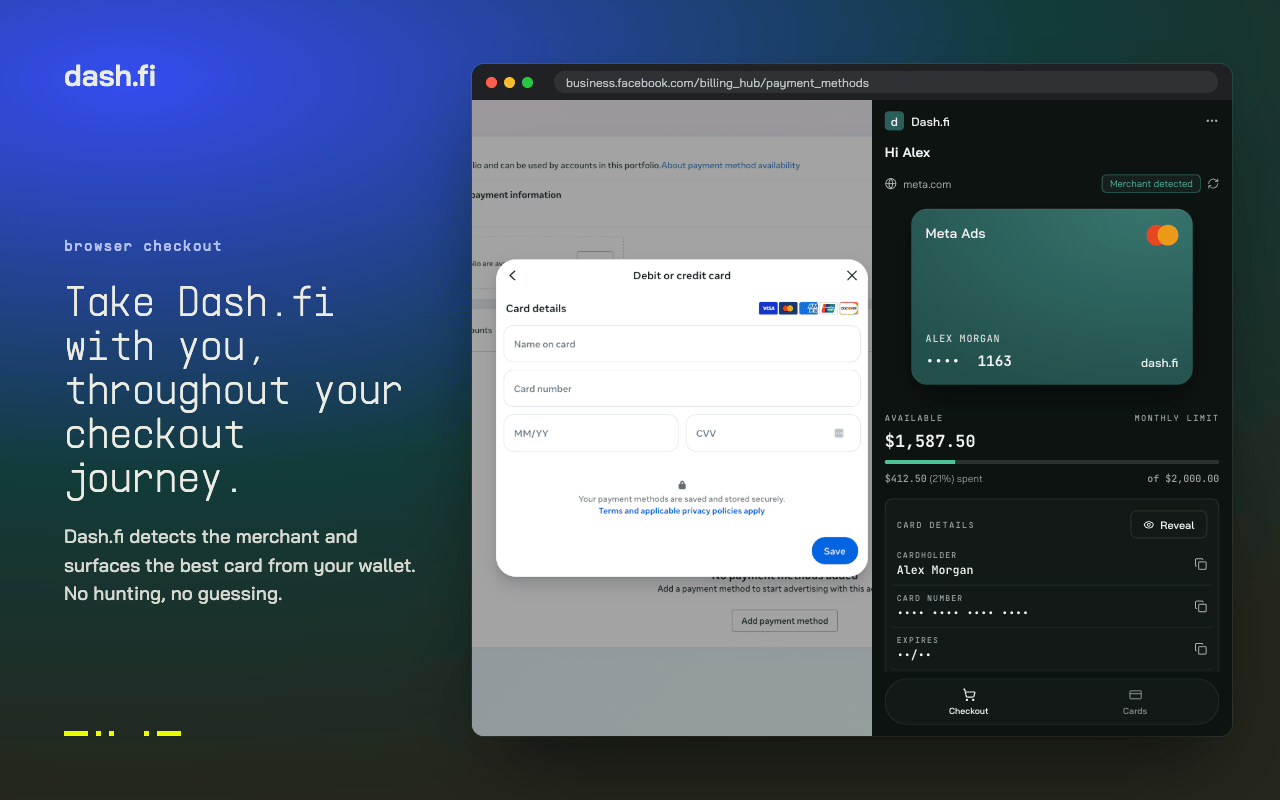
The Dash.fi Card Assistant browser extension for Chrome brings your virtual cards to the checkout page. Instead of switching to the dashboard to reveal a card number, you can fill card details, request a purpose-built card, and confirm the charge went through, all from the site you're buying on.
 ## Get started
1. Install [Dash.fi Card Assistant](https://chromewebstore.google.com/detail/dashfi-card-assistant/dopjmifbhoekghgglnjfdmepklfnfcmc) from the Chrome Web Store
2. Sign in with your Dash.fi account, the same way you sign in to the web dashboard
The extension shows the cards you hold. What you can do is governed by your account permissions: viewing cards, revealing card numbers, and freezing cards each follow the same permission rules as the dashboard.
## Your cards at checkout
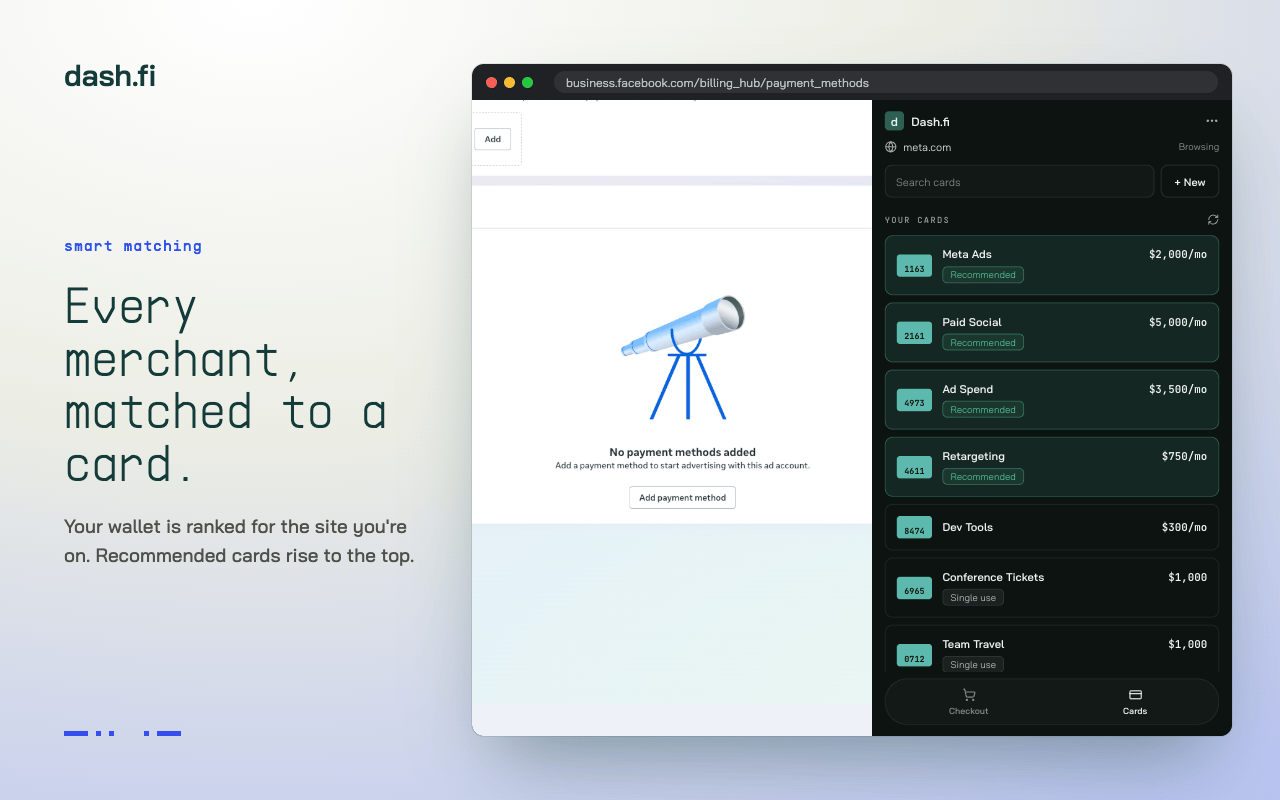
On a checkout page, the extension shows your active cards that work on that site. Dash.fi recognises common business merchants, including ad platforms (Meta, Google Ads, TikTok Ads), AI and cloud providers (OpenAI, Anthropic, AWS), SaaS tools, shipping carriers (UPS, FedEx, DHL), and airlines, and matches them to your cards' spend-category restrictions.
A card restricted to Advertising is offered on an ad platform but not on a shipping site. Unrestricted cards work everywhere your account's categories allow.
## Get started
1. Install [Dash.fi Card Assistant](https://chromewebstore.google.com/detail/dashfi-card-assistant/dopjmifbhoekghgglnjfdmepklfnfcmc) from the Chrome Web Store
2. Sign in with your Dash.fi account, the same way you sign in to the web dashboard
The extension shows the cards you hold. What you can do is governed by your account permissions: viewing cards, revealing card numbers, and freezing cards each follow the same permission rules as the dashboard.
## Your cards at checkout
On a checkout page, the extension shows your active cards that work on that site. Dash.fi recognises common business merchants, including ad platforms (Meta, Google Ads, TikTok Ads), AI and cloud providers (OpenAI, Anthropic, AWS), SaaS tools, shipping carriers (UPS, FedEx, DHL), and airlines, and matches them to your cards' spend-category restrictions.
A card restricted to Advertising is offered on an ad platform but not on a shipping site. Unrestricted cards work everywhere your account's categories allow.
 ## Fill card details
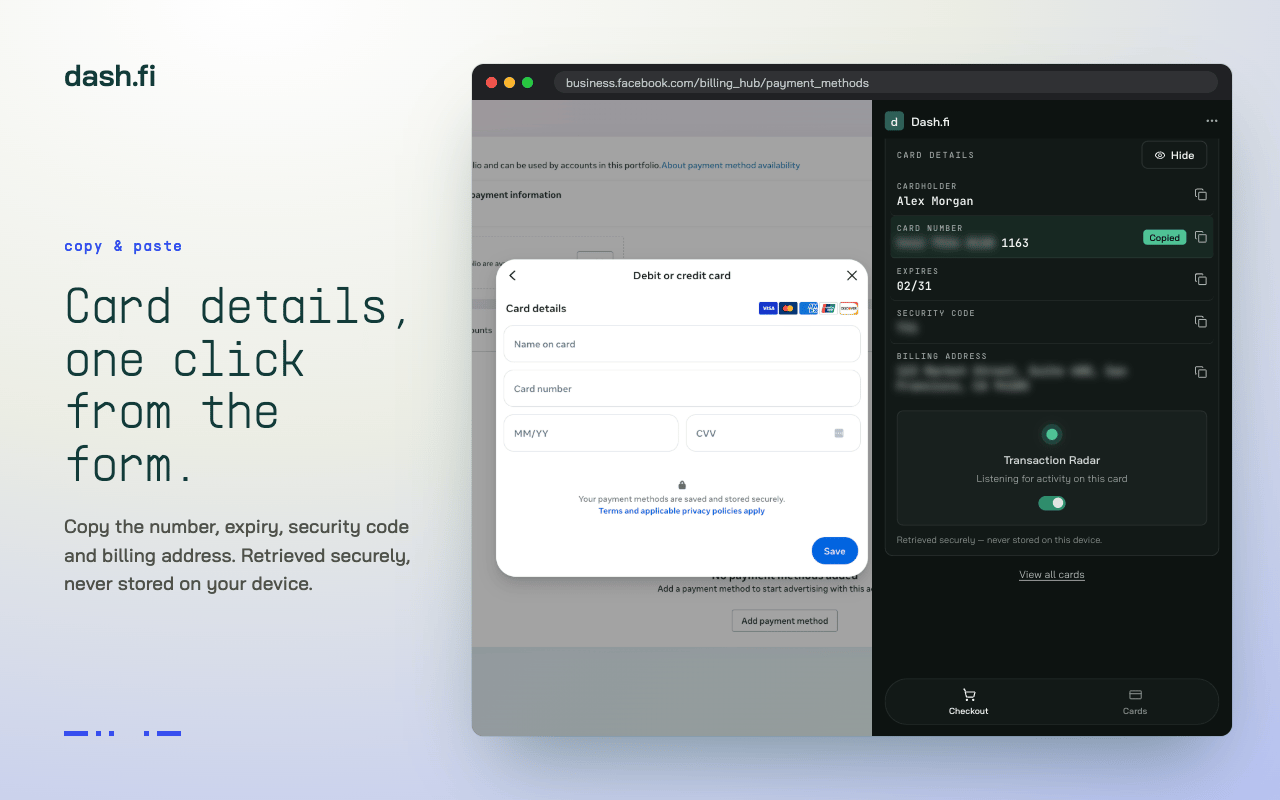
Select a card to fill its number, expiry, and CVV at checkout. The extension can also fill the billing address: your cardholder address, or the company address when you don't have one on file.
Card numbers are fetched directly from the card processor using a single-use, encrypted request. They are not stored by the extension.
## Fill card details
Select a card to fill its number, expiry, and CVV at checkout. The extension can also fill the billing address: your cardholder address, or the company address when you don't have one on file.
Card numbers are fetched directly from the card processor using a single-use, encrypted request. They are not stored by the extension.
 ## See whether the charge went through
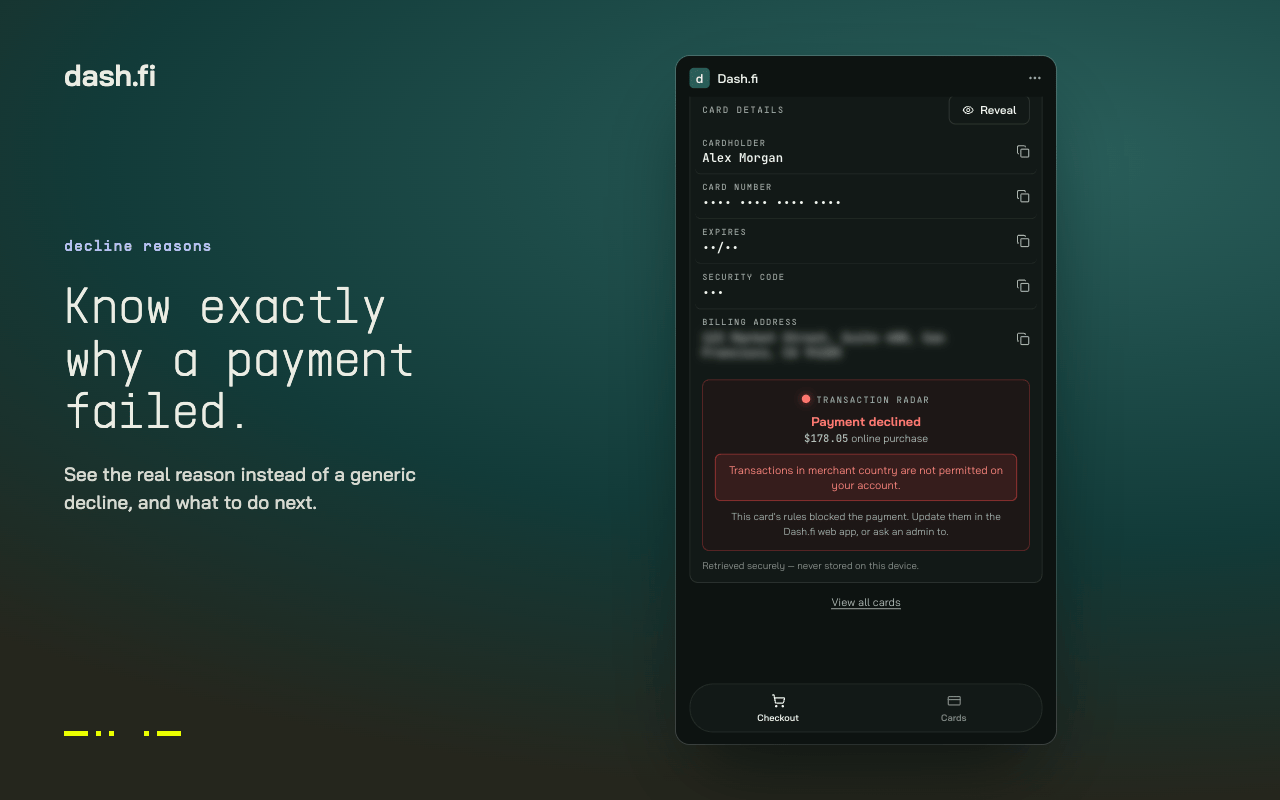
After you fill a card at checkout, the extension watches that card for the resulting transaction and shows the outcome:
* **Approved** — the charge was authorised, with the merchant and amount
* **Declined** — the charge was rejected, with the reason and the most useful next step (for example, unfreeze the card or raise its limit)
This is the same decline information covered in [Card declines](/cards/card-declines).
## See whether the charge went through
After you fill a card at checkout, the extension watches that card for the resulting transaction and shows the outcome:
* **Approved** — the charge was authorised, with the merchant and amount
* **Declined** — the charge was rejected, with the reason and the most useful next step (for example, unfreeze the card or raise its limit)
This is the same decline information covered in [Card declines](/cards/card-declines).
 ## Request a card from the checkout page
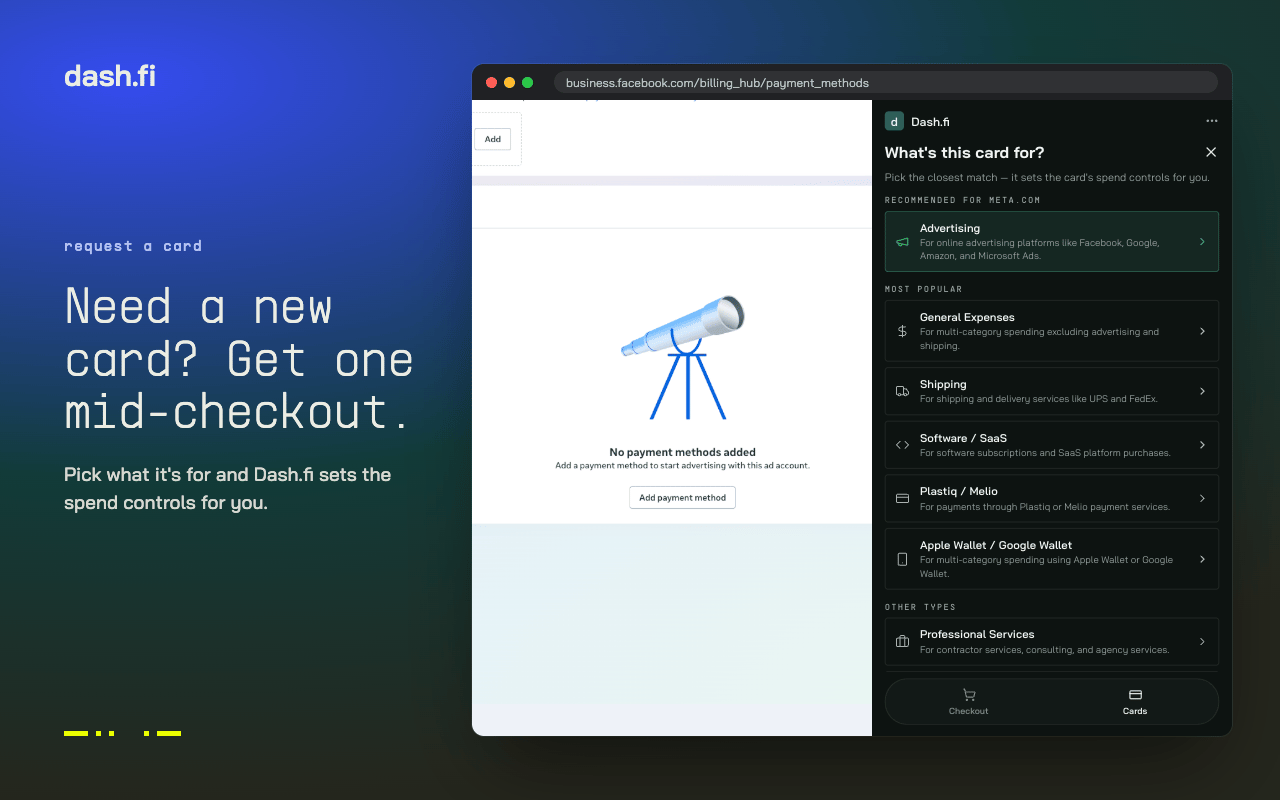
If none of your cards fit the purchase, you can request a new one without opening the dashboard:
1. The extension suggests a template matched to the site you're on, for example the Advertising template on an ad platform. You can pick a different template or skip templates entirely.
2. Set a name, a spend limit, and the card type: **Single-Use** (the limit applies over the card's lifetime) or **Recurring** with a daily, weekly, monthly, or yearly limit.
3. Submit the request.
## Request a card from the checkout page
If none of your cards fit the purchase, you can request a new one without opening the dashboard:
1. The extension suggests a template matched to the site you're on, for example the Advertising template on an ad platform. You can pick a different template or skip templates entirely.
2. Set a name, a spend limit, and the card type: **Single-Use** (the limit applies over the card's lifetime) or **Recurring** with a daily, weekly, monthly, or yearly limit.
3. Submit the request.
 What happens next follows your organisation's card policy, the same as in the dashboard:
* The card is issued immediately and ready to use, or
* The request routes to an approver first, or
* The request is declined because the policy doesn't allow it
Spend limits for cards requested through the extension are between $50 and $1,000,000. Card names must be unique across your account. See [Create cards](/cards/create-cards) for how templates and spend categories work.
## Freeze and unfreeze
You can freeze any of your cards from the extension, and unfreeze them again. A frozen card declines every transaction until it's unfrozen. This matches the freeze action in the dashboard; see [Manage cards](/cards/manage-cards).
This documentation is built and hosted on [Mintlify](https://mintlify.com), a developer documentation platform.
What happens next follows your organisation's card policy, the same as in the dashboard:
* The card is issued immediately and ready to use, or
* The request routes to an approver first, or
* The request is declined because the policy doesn't allow it
Spend limits for cards requested through the extension are between $50 and $1,000,000. Card names must be unique across your account. See [Create cards](/cards/create-cards) for how templates and spend categories work.
## Freeze and unfreeze
You can freeze any of your cards from the extension, and unfreeze them again. A frozen card declines every transaction until it's unfrozen. This matches the freeze action in the dashboard; see [Manage cards](/cards/manage-cards).
This documentation is built and hosted on [Mintlify](https://mintlify.com), a developer documentation platform.