

This page covers standard Dash.fi virtual cards. The Rewards Card is a different product — you can’t edit its allowed countries or spend categories yourself, so restriction-based declines are resolved by support. See Rewards Card if you were declined on a Rewards Card.
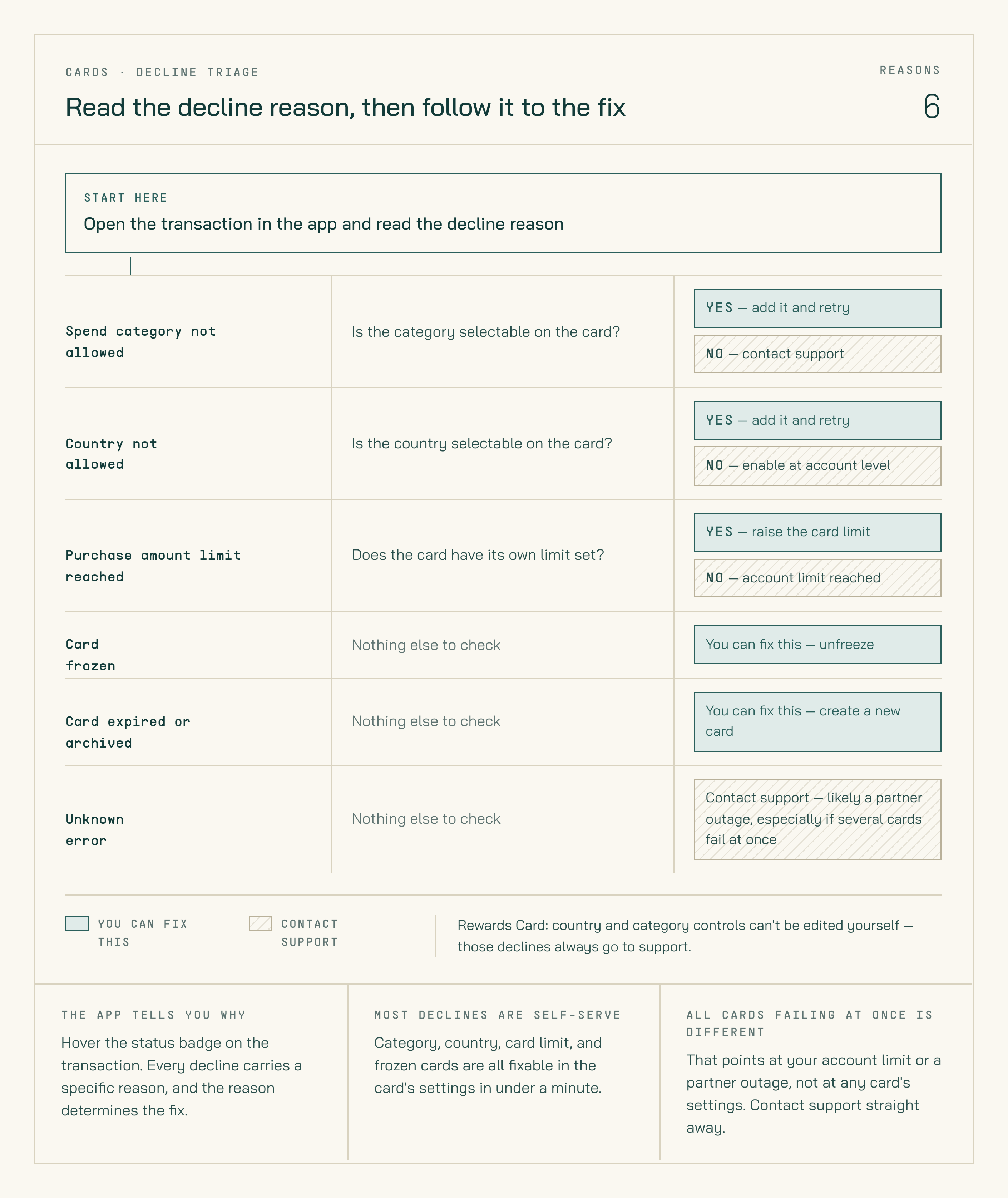
Start from the decline reason in the app: most reasons are self-serve, and the rest go to support.
Spend category not allowed
What you see in the app: “Spend category not allowed” First step — check your card’s Spending Controls. Open the card in the app and look at which categories are enabled.- The merchant’s category is missing from the card — add it. If your account allows that category, you can add it to the card yourself without contacting support. Save the card and retry the payment.
- You can’t add the category, or it’s not available to select — the category is restricted at the account level on that card. Create a new card with broader category controls instead: choose an unrestricted template, or a general expenses card that covers a wide range of merchant types. If you need the specific category unlocked account-wide, contact support at support@dash.fi.
Country not allowed
What you see in the app: “Country not allowed” Try adding the country to the card first. Most of the time this is self-serve and you won’t need support at all. Open the card in the app, click the gear icon to edit it, and expand Allowed countries.- The country is in the list — tick it, save the card, and retry the payment. Anything you can select is already enabled on your account, so there’s nothing to request.
- The country isn’t in the list — it isn’t enabled on your account yet. Ask support to enable it, or email support@dash.fi. Once it’s enabled you can add it to any card yourself.
- The card has no Allowed countries section — it’s an older card that predates country controls, and countries can’t be added to it. Duplicate the card (More → Duplicate), set the countries on the copy, and use that going forward.
Spend limit reached
What you see in the app: “Purchase amount limit reached”, “Single purchase limit reached”, “Purchase count limit reached”, or “International purchase limit reached” For “Purchase amount limit reached” — check the card’s spend limit first. Open the card and look at its configured daily or monthly limit.- The card has a spend limit set — edit the card to raise or remove the limit. Save and retry.
- The card has no limit set (or is set to “Unlimited”) — the account-level limit has been reached. Contact support at support@dash.fi to discuss an increase.
Your account’s overall limit applies regardless of individual card limits. A card set to “Unlimited” will still decline if the account-level limit is reached.
Card is frozen or archived
What you see in the app: “Card frozen” or “Card archived” The card’s state is preventing transactions. Frozen (“Card frozen”): The card was frozen manually. Unfreeze it from the card detail sheet and retry the payment. Archived (“Card archived”): The card has been permanently closed. It can’t be reactivated. Create a new card to continue.Card expired
What you see in the app: “Card expired” The card’s expiry date has passed. Create a new card to continue.Card details mismatch
These declines happen when the details entered at checkout don’t match what’s on file. They’re common when manually typing card details into a form.Address verification
All four address-verification failures show the same title — “Address verification not successful” — but the detail line underneath tells you exactly what didn’t match. Read it before you start changing things.Account-level declines
These aren’t about the card at all — they block every card on the account, and none of them are self-serve.If every card starts declining at once with one of these messages, it’s an account-level issue rather than anything to do with an individual card’s settings.
Issuer decline
What you see in the app: “Unknown error” A rare disruption in Dash.fi’s banking partner infrastructure. This isn’t caused by your account settings or the merchant.- Wait a short time and retry
- If multiple cards decline at the same time with no limit or category explanation, contact support at support@dash.fi immediately — this typically signals a partner system issue
Quick troubleshooting
My card was declined but I haven't hit any limits
My card was declined but I haven't hit any limits
Check the transaction detail in the app — it shows the exact reason. The most common causes without a visible limit hit are a spend category restriction or a country restriction. Open the card’s Spending Controls to check which categories and countries are allowed. If the missing category or country is available to select, add it yourself — no need to contact support.
The card works at some merchants but not others
The card works at some merchants but not others
The card most likely has spend category restrictions. Open the card detail sheet, check Spending Controls, and add the missing category. If the category isn’t available to add, the restriction is at the account level — contact support at support@dash.fi.
The card was declined at an international merchant
The card was declined at an international merchant
Check the transaction detail. If it says “Country not allowed”, edit the card and expand Allowed countries. Try adding the merchant’s country — if you can select it, tick it and save, and you’re done. Only if the country isn’t in the list at all does it need enabling on your account: ask support to enable it, or email support@dash.fi.
My card was working and then suddenly stopped
My card was working and then suddenly stopped
The card may have been frozen — either manually or automatically due to unusual spend activity. Open the card in Dash.fi and check the status. If it shows Frozen, click Unfreeze to restore it. If you’re unsure why it was frozen, contact support at support@dash.fi.
Every card I try is being declined
Every card I try is being declined
This usually means the account-level spend limit has been reached. Check the card settings — if no card-level limit is set but charges are still declining, contact support at support@dash.fi immediately. It may be an account limit or a partner system issue.
The payment fails even though the card looks fine
The payment fails even though the card looks fine
Re-check the card details at checkout: expiry date, CVV, and billing address. Copy the address directly from Settings → Business to avoid a mismatch. If details are correct and the error persists, contact support at support@dash.fi with the merchant name.