

Transaction statuses
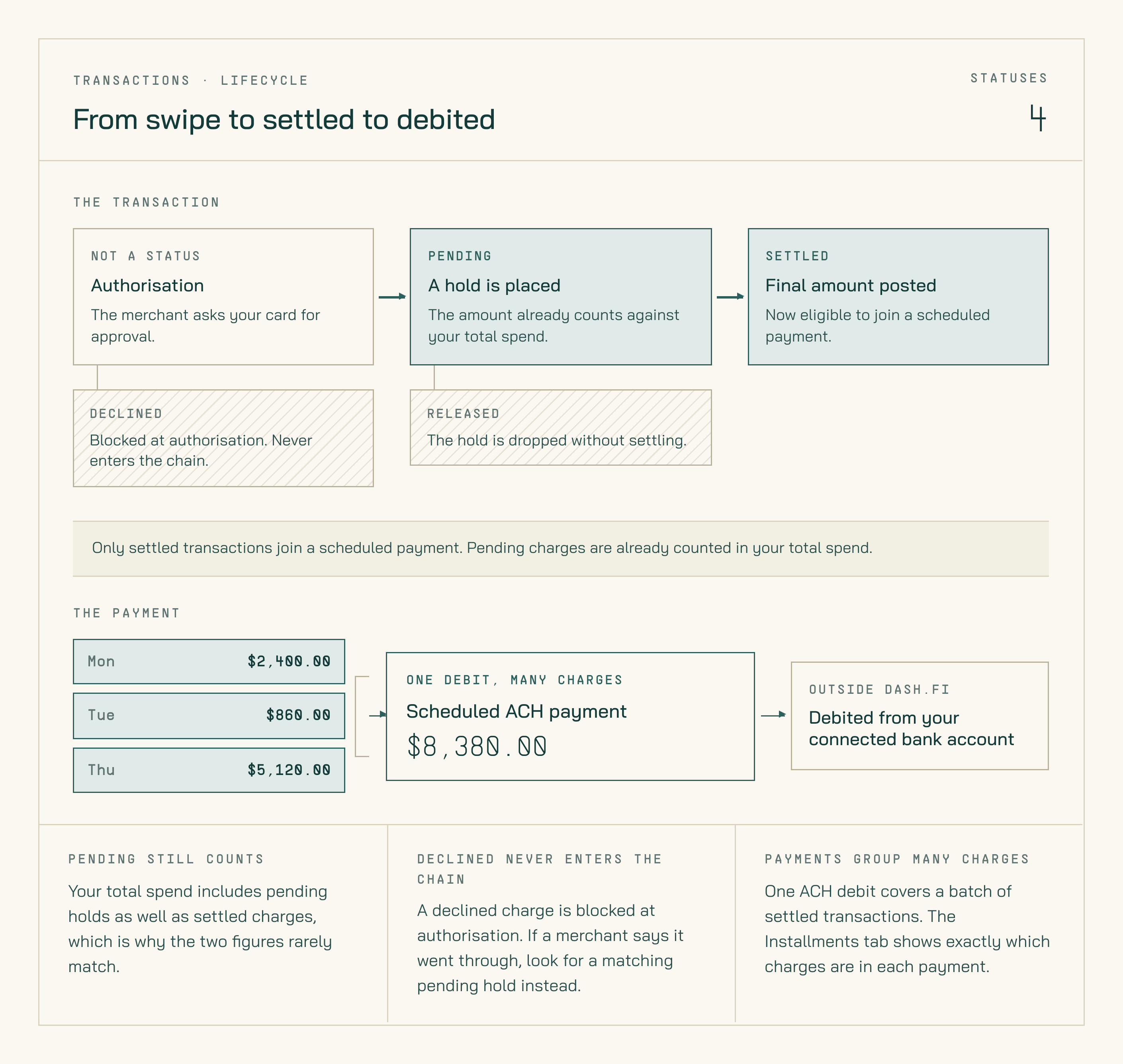
A card charge from authorisation through settlement, and how settled charges group into one scheduled ACH payment.
Check the status of any charge under Spend → Card Transactions. The page has All, Settled, Pending, and Declined tabs, and the Status column shows the current state of each row.
How a charge progresses
Most charges follow the same path:- The merchant authorises the charge and it appears as Pending.
- The merchant submits the charge for settlement, usually within 1–3 business days.
- The charge becomes Settled and joins your next scheduled payment.
- A Released hold never settles. This happens when a merchant authorises an amount and then doesn’t claim it — a hotel pre-authorisation, or a cancelled order. The hold falls off automatically.
- A Declined charge was blocked before authorisation completed, so it never becomes pending or settled. See Card declines for what each decline reason means and how to fix it.
US banking holidays can slow settlement. If a charge sits in Pending longer than usual during a holiday period, that’s typically the cause — it resumes on the next banking business day.
Why total spend doesn’t match your pending total
Your total spend includes both pending holds and settled charges. Your pending total includes only the holds that haven’t settled yet. The two figures are measuring different things, so they’ll almost never be equal. If you want to reconcile them, compare the All tab against the Pending and Settled tabs under Spend → Card Transactions.Transaction not showing up?
If you’ve made a charge and it isn’t visible yet:- Click Refresh in the dashboard to pull the latest data.
- Give it a few moments — new authorisations can take a short time to appear.
Seeing which charges are in each payment
Settled card transactions are grouped into scheduled ACH payments that debit your connected bank account. To see exactly which charges are in a given payment:1
Open Scheduled payments
In the left-hand navigation, go to Spend → Payments, then open the Scheduled tab.
2
Review scheduled and past payments
Scheduled shows upcoming payments that haven’t been debited yet. Past shows payments that have already processed.
3
Expand a payment
Click a payment date to expand it and see the details for that payment.
4
Review the breakdown
The expanded view shows the payment amount and date, with two tabs:
- ACH — the payment debited from your connected bank account
- Card Transactions — every card charge included in that payment
5
Verify the totals match
The totals in the ACH tab and the Card Transactions tab should match exactly.